
To transfer programs to the TI-84 Plus or TI-89 Titanium, you will need a software program by Texas Instruments and a cable. The [amazon_link id=”B0006I0ADI” target=”_blank” container=”” container_class=”” ]TI-89 Titanium[/amazon_link] and [amazon_link id=”B0001EMM0G” target=”_blank” container=”” container_class=”” ]TI-84 Plus[/amazon_link] have similar methods for transferring programs, mainly due to the USB port on the newer calculators versus the older Graphlink port.
In order to transfer programs to your TI-89 Titanium or TI-84 Plus you will need to install the TI Connect program that comes on the CD with your calculator. If you do not have the CD, you will need to download the program from the TI Website.
Also, you will need a link cord. This cord is different from the older calculators, and is just a standard Mini B USB cable. Both calculators generally come with a USB cord in the package, but you can also [amazon_link id=”B000067RVL” target=”_blank” container=”” container_class=”” ]buy one from Amazon[/amazon_link] if you do not have the cable. These cords retail for $3.00 or less.
To begin, leave your calculator disconnected from your computer. You will need to insert the CD that came with your calculator, and follow the directions. If you don’t have the CD, install TI Connect now.
Once TI Connect is installed, you may connect your calculator. If you are running Windows, your computer should tell you it is installing the drivers for the new device (your calculator).
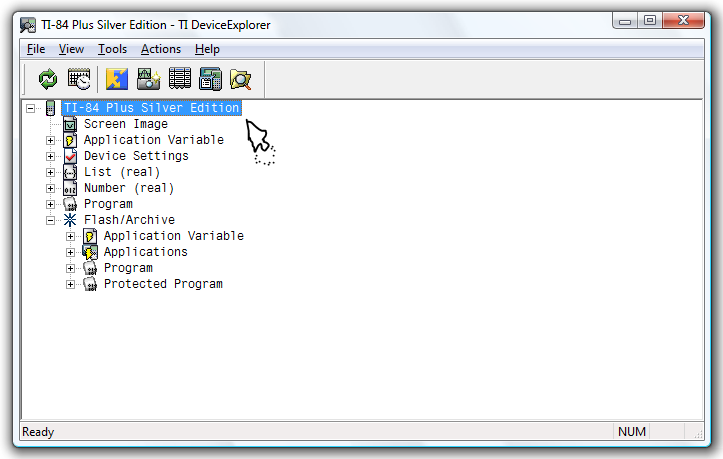
 Go ahead and run TI Connect by clicking on one of the shortcuts created, or go into the Applications folder if you are running Mac OS X. You should see a window similar to the one on the right. Select the “TI DeviceExplorer” button to bring up the Explorer window. If your calculator is plugged in correctly, TI Connect will detect the device.
 If your calculator is successfully detected, click on it in the list and press “Select”. A list of variables will show up, along with your calculator model.
If your calculator is not successfully detected, try uninstalling TI Connect, then install it again.
 Now, unzip the games from the ZIP file that they were contained in. There is usually 1 8xp file, and one TXT readme file. You can unzip the files with 7-zip, or with Windows XP SP2 or later (this includes Windows Vista, Windows 7, and Windows 8).
After the files are unzipped, drag all of the 8XP files into the TI DeviceExplorer window to begin the transfer.
6 Responses to Transferring Programs to Your TI-89 Titanium, TI-84 Plus, and TI NSpire